
Loom Review: Asynchronous Video for Small Remote Teams That Dread Meetings
A practical review of Loom’s async video features, pricing, and fit for small remote teams that want fewer recurring meetings.

Loom Review: The Short Version
The short version: Does Loom cut meeting bloat?
Loom is worth it when the message is one-way. It replaces recurring status calls, walkthroughs, and handoffs with short recordings that teammates can watch and comment on later. The free Starter plan is a real trial, but its five-minute screen-recording cap and 25-video limit push most teams to Business.
Does Loom replace recurring meetings entirely? It replaces one-way presentations, demos, and project updates well. It is a poor fit for live negotiation or brainstorming. The free Starter tier caps screen recordings at five minutes and 25 videos per user, while meeting recordings connected to Zoom, Google Meet, or Teams remain unlimited.
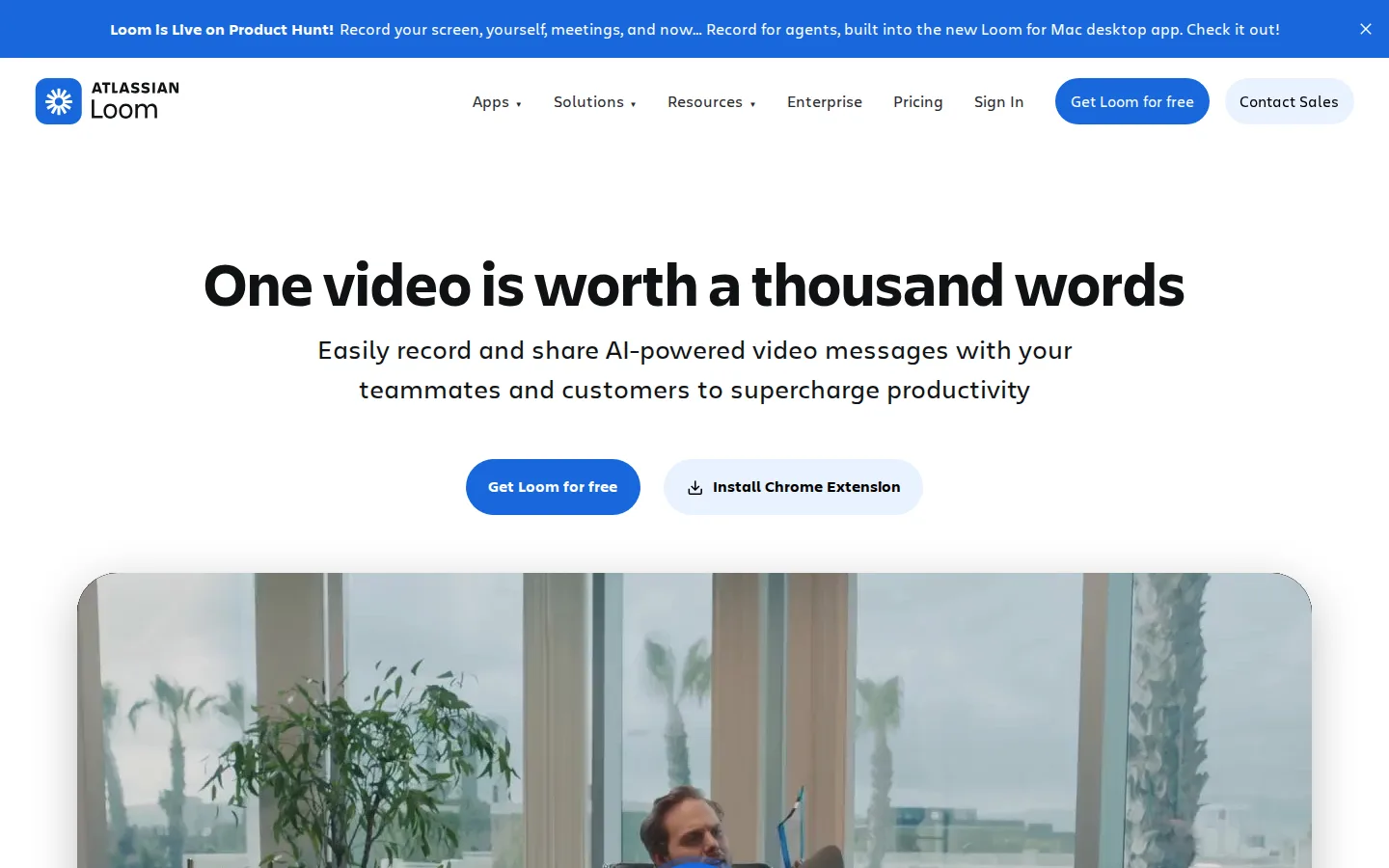
Loom home page, where recordings start.
Loom Review: Does It Actually Cut Meeting Bloat?
This Loom review examines whether quick screen captures replace routine syncs or simply add another inbox. It is part of our software reviews, and it follows the same evidence policy we use for every tool.
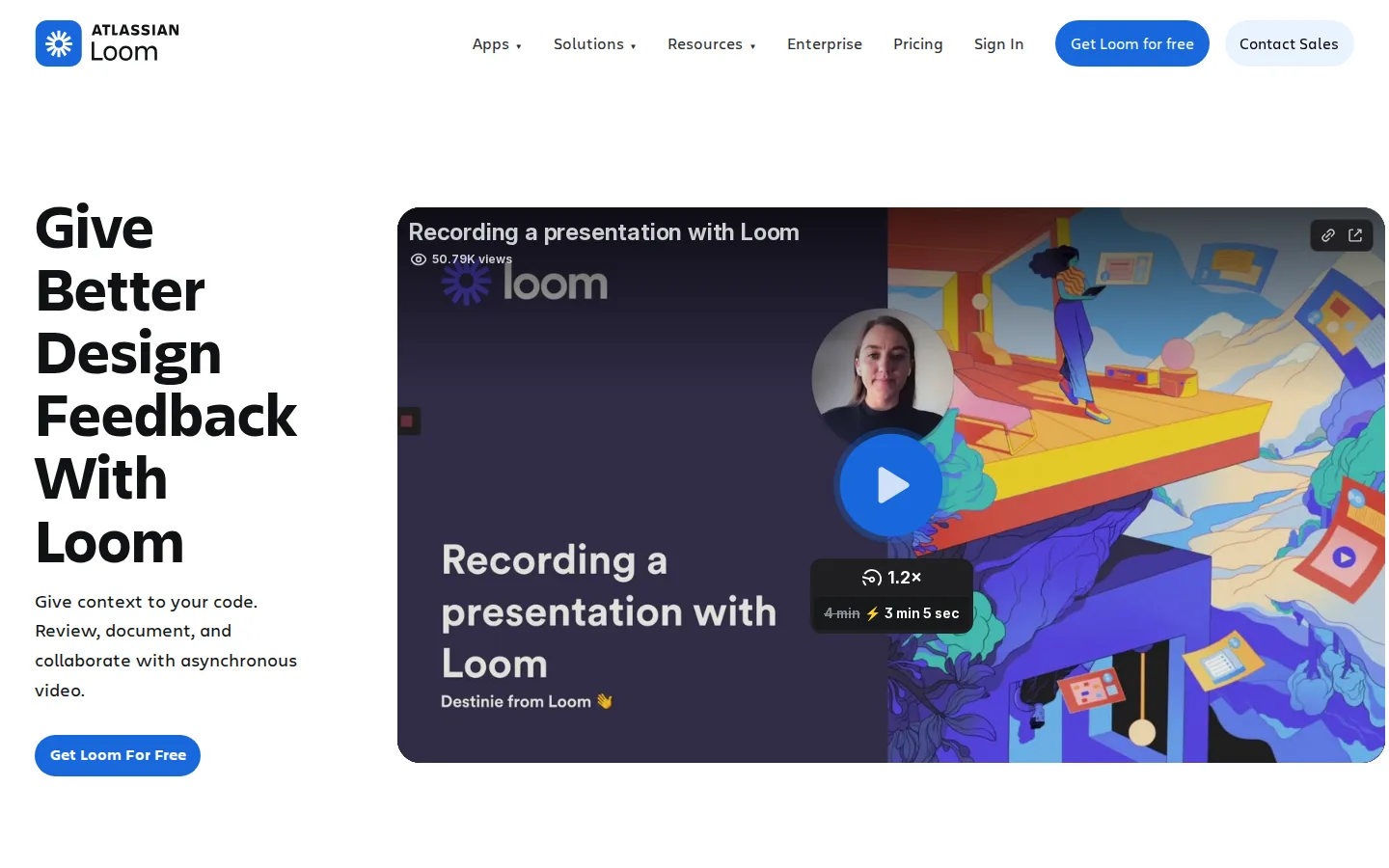
Loom’s code review page, one of the workflows async video is designed for.
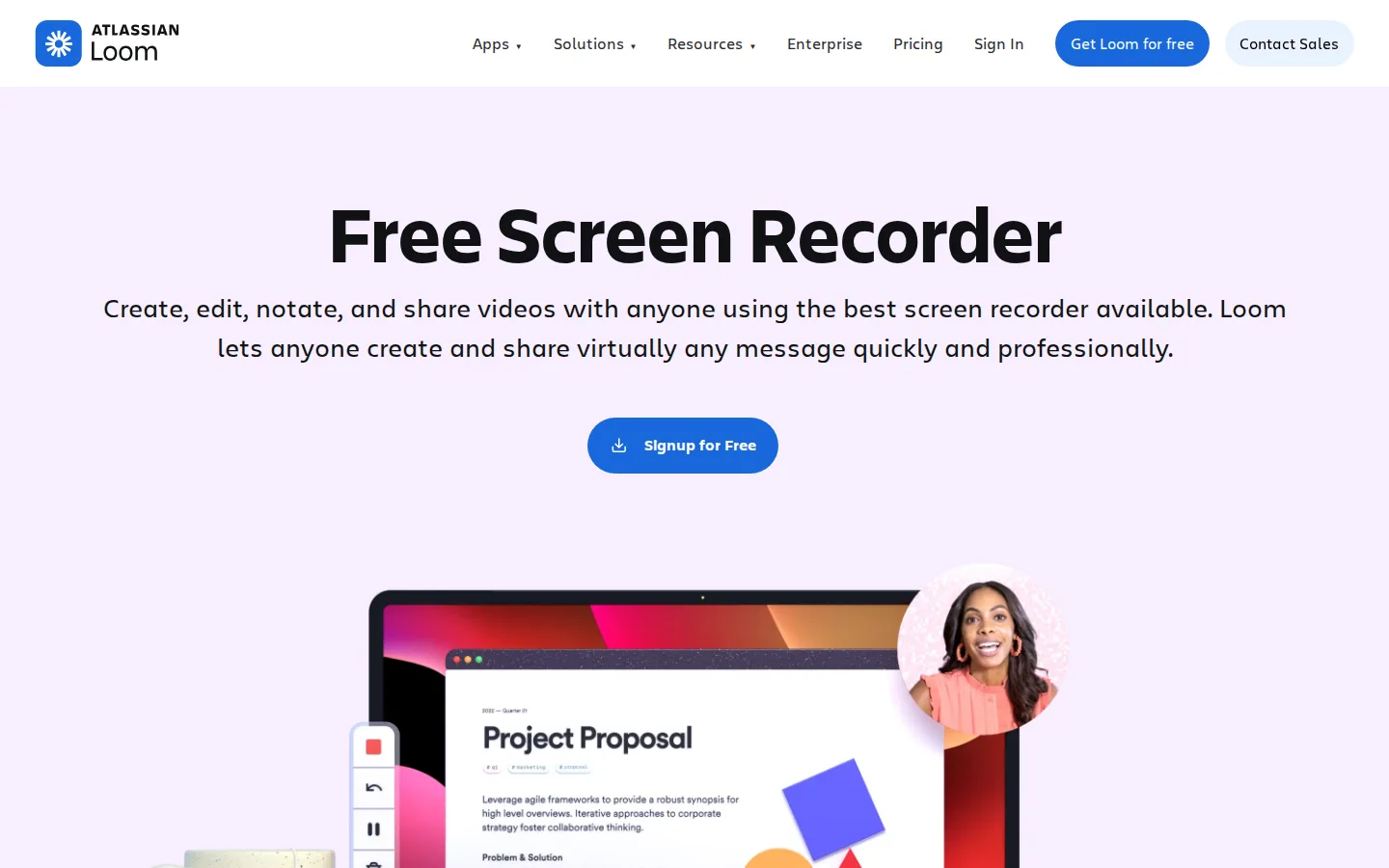
Loom’s screen recorder page.
Async video works best when the goal is one-way communication: a product walkthrough, a design review, a weekly update, or a customer explanation. Loom records the screen and camera together, then shares a link that viewers can watch on their own schedule. The recording becomes a reusable artifact instead of another calendar event.
It is a weak fit for live negotiation, brainstorming, or incident response. Loom is built around comments and reactions rather than real-time collaboration, so teams still need a response window and an owner for follow-up. A good rule for any Loom review is to record only when the viewer can act asynchronously.
When async video works
Use it for updates, walkthroughs, and handoffs. Keep clips short, say what you need, and give viewers a deadline for comments.
AI Summaries, Transcript Accuracy, and Viewer Signals
For teams using async video instead of scheduling live calls, Loom's value often hinges on what happens after recording. Viewer insights show who has watched a clip, while teammates can reply directly on the timeline with emojis, comments, tasks, and calls to action. Those signals turn a one-way recording into a discussion thread.
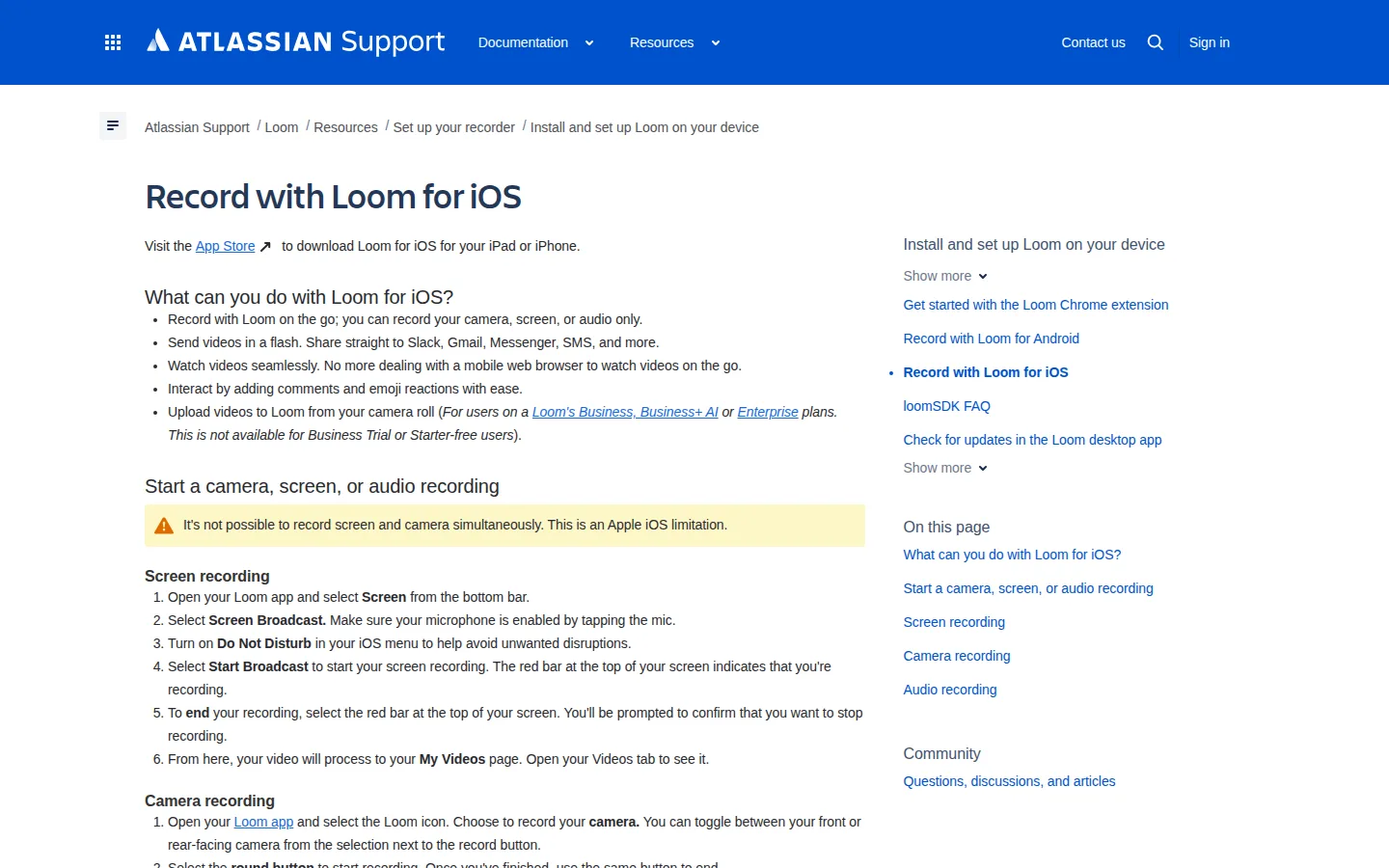
Loom’s iOS recording documentation.
Viewer insights show who has watched a recorded Loom, and viewers can reply with emojis, comments, tasks, and CTAs on the timeline. On the AI side, Business + AI adds Record for agents, automated meeting notes, recap emails, filler-word removal, and transcript-based editing.
Loom records the screen, camera, or both on macOS, Windows, Chrome, iOS, and Android. Every plan includes transcriptions and captions in more than 50 languages, while AI summaries and meeting notes require Business + AI. Our Loom review treats those signals as part of the workflow, not an afterthought. We explain the scoring and evidence standard in how we review software.
Loom video pricing and free plan limits explained
Loom's free Starter plan costs $0 and limits each user to 25 videos and five minutes per screen recording, with video resolution capped at 720p. Calendar-connected meeting recordings through Zoom, Google Meet, and Microsoft Teams have no recording-length limit even on Starter. Starter also supports up to 50 workspace members.
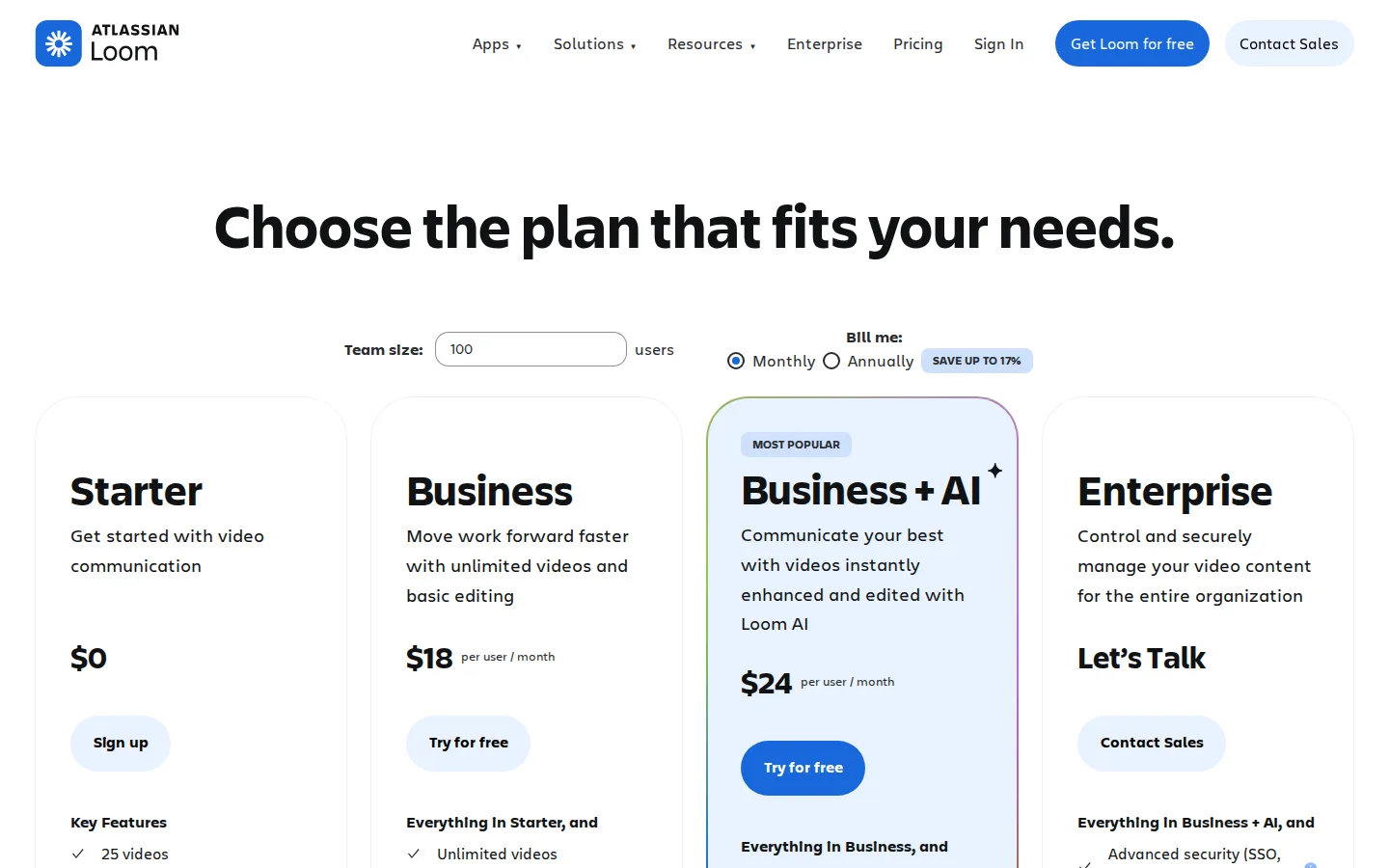
Loom pricing page, checked November 2026.
For small teams adopting async video, upgrading past the free tier removes the storage and recording bottlenecks. Business lifts the five-minute cap and 25-video ceiling, adds unlimited videos and recording time, and supports 4K resolution. On monthly billing, Business costs $18 per user per month and Business + AI costs $24. Annual billing lowers the monthly equivalent.
Scroll the table →
Plan
Price
Screen recording
Best for
Starter
$0
5 min per video; 25 videos per user; 720p
Trying async updates with a small team
Business
$18/user/mo
Unlimited videos and recording time; up to 4K
Teams replacing recurring updates
Business + AI
$24/user/mo
Adds AI summaries, meeting notes, recaps, transcript editing
Teams that edit and recap often
Enterprise
Custom
Adds SSO/SCIM, advanced security, 99.95% SLA
Organizations with compliance needs
Annual billing lowers the monthly equivalent; Loom advertises savings of up to 17%. Business also adds password-protected videos, a workspace-level default privacy setting, and engagement insights. For alternatives, see our software comparisons.
The five-minute cap is the real free-plan limit
Meeting recordings connected to Zoom, Google Meet, or Teams are unlimited even on Starter. Ad-hoc screen recordings are capped at five minutes, which is why most teams that record walkthroughs end up on Business.
Pros and Cons of Loom for Distributed Teams
In evaluating Loom for remote teams, the tool proves effective for replacing routine updates through timeline comments, viewer insights, and multi-language captions. However, the free-tier limits and the AI paywall make it less practical without an upgrade.
Pros
- Timeline comments, emoji reactions, and viewer insights turn a recording into a discussion.
- Transcripts and captions in 50+ languages make recordings easier to scan across time zones.
- Unlimited meeting recording length on every plan, including Starter.
- Native links to Slack, Jira, Confluence, GitHub, and other everyday tools.
Cons
- The free Starter plan caps screen recordings at five minutes and 25 videos per user.
- Password protection and workspace-level default privacy require Business or higher.
- AI summaries, meeting notes, and transcript editing require Business + AI.
- Async video adds another inbox; without response norms it can slow decisions.
- It is not a replacement for live negotiation or brainstorming.
Loom is strongest when the team already writes things down and wants to replace one-way updates, not when it needs a real-time workshop.
Loom Evaluation Scorecard
In our Loom review, Loom proves practical for replacing recurring status meetings with asynchronous walkthroughs. The free Starter plan costs $0 but caps screen recordings at five minutes and 25 videos per user, alongside a 720p quality cap. Business ($18 per user per month billed monthly or $180 annually) eliminates recording-length and storage limits while unlocking 4K. Adding AI pushes Loom pricing to $24 per user per month, which adds transcript-based editing, filler-word removal, and automated recap emails. Key integrations like Slack, Jira, and Confluence work on all tiers.
Scores reflect the criteria in our review methodology and are based on public documentation, pricing, and reported user experience. They are not a controlled lab benchmark.
The verdict
Verdict: worth it for one-way updates, not every meeting
Loom is worth it for small remote teams that need to replace recurring status updates, walkthroughs, and handoffs with reusable video. The free Starter plan is a useful trial, but the five-minute screen-recording cap and 25-video limit push most teams to Business at $18 per user per month. Add Business + AI at $24 if transcripts, summaries, and recaps will save real editing time. Skip Loom if your team needs live debate or if written docs already carry the work.
Is Loom free?
Yes. Starter costs $0 and includes 25 videos per user, five-minute screen recordings, unlimited meeting recording length, and 720p video.
What is the difference between Business and Business + AI?
Business removes the recording and storage limits and adds editing and 4K. Business + AI adds auto summaries, meeting notes and recaps, filler-word removal, and transcript-based editing.
Are Loom videos private by default?
Loom includes video privacy controls on every plan. Password protection and a workspace-level default privacy setting require Business or higher, so teams handling sensitive material should budget for a paid plan.
Does Loom replace meetings?
It replaces one-way updates, demos, and handoffs well. It is a poor fit for live negotiation, brainstorming, or anything that needs immediate back-and-forth.
How many people can use the free plan?
Starter supports up to 50 workspace members; paid plans remove that cap.
What is the bottom line of this Loom review?
Business is the right default for teams that record walkthroughs every week; Starter is enough for occasional meeting recaps and short updates.
Produced by
ToolNest Editorial
Independent software reviews, comparisons and guides for people who want their tools to feel lighter.
All ToolNest reviews are produced automatically, based on research, reviews and automated tests. How we review.
Keep reading
More from the nest.
 Guides
Seven jobs, seven tools and a simple weekly reset for a software stack that makes room for focused work instead of more tabs.
 Guides
A practical, low-maintenance analytics routine for small teams: one question, a small stack and a weekly review that leads to decisions.
 Reviews
Five project tools with free plans that a small team can actually use, plus the limits worth checking before you commit.
The ToolNest letter
Better tools, once a week.
One calm email with the reviews, comparisons and tools worth your attention.
Join the newsletter“Less noise. Better tools. A calmer stack.”